
ModelDial for macOS
Your model picklives in the notch
Move the pointer to the notch to see the recommended model, score, and key tradeoffs. Open the full Radar only when you need the evidence.
Hover the capsule. Click to open the evidence.
The compact capsule shows the recommended model and effort.
How the notch recommendation works
No extra window to keep open. The recommendation stays compact until you hover, then expands only as far as you need.
- 01Lives in the notch
The recommendation stays out of your way
The compact surface sits at the top of your Mac and keeps the current model within reach without occupying the desktop.
- 02Hover to check
See the model and score instantly
Move the pointer over the notch to reveal the current recommendation, score, and the quality, time, and cost tradeoffs behind it.
- 03Open the evidence
Expand only when you need more
Click to open the full Radar. Provider requests begin only if you choose a route and start a local scan yourself.
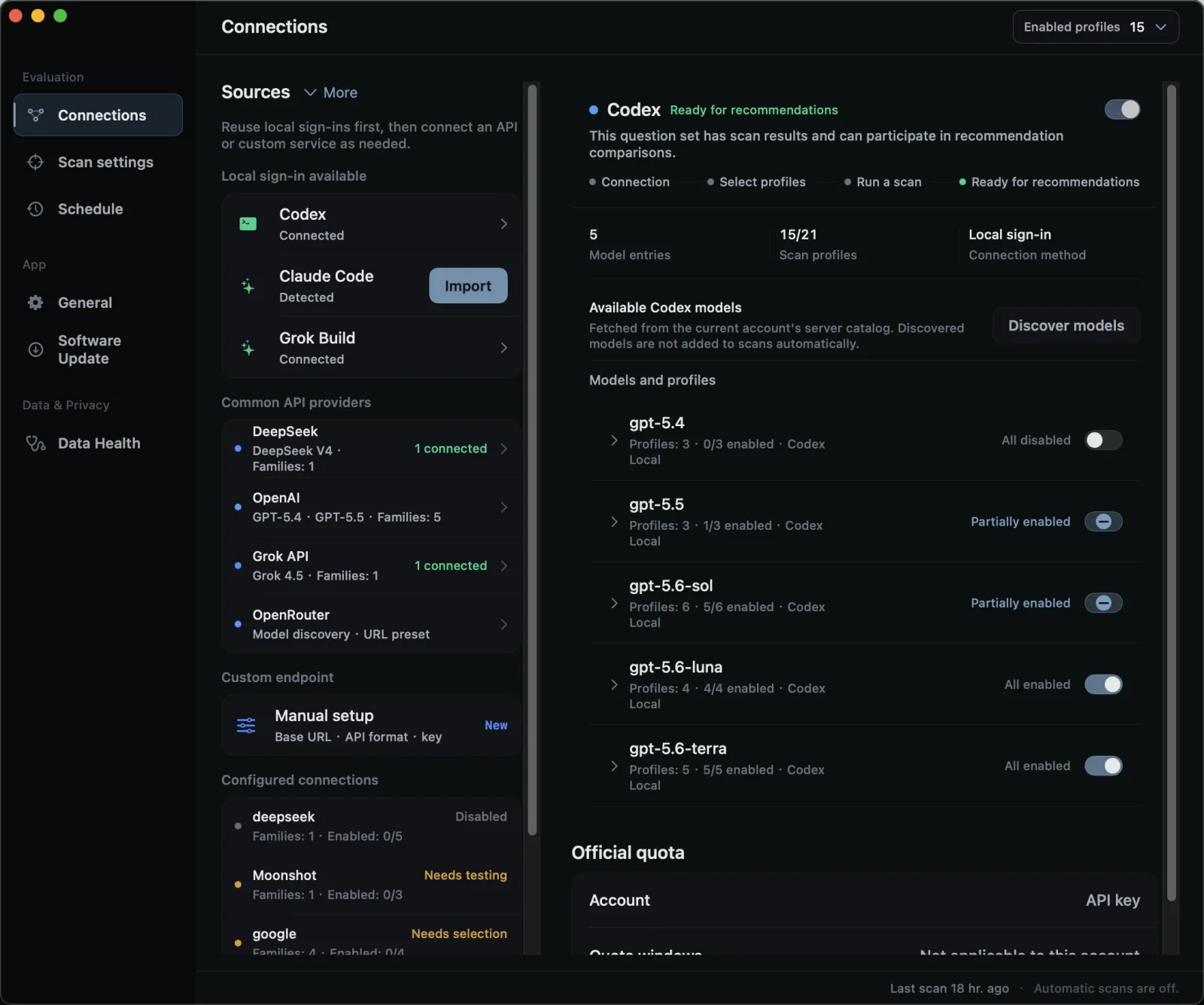
Connect the models you actually use
Reuse a local sign-in, connect a provider API, or add an OpenAI-compatible endpoint. ModelDial discovers available models and keeps each model, effort, account, and route separate.
- Local sign-ins
- Codex, Claude Code, Grok Build
- Provider APIs
- OpenAI, DeepSeek, Grok API, OpenRouter
- Compatible endpoints
- Base URL, API format, and key
Nothing runs behind your back
Installation itself does not start a scan. Requests begin only when you start one or later enable a schedule.
- 01
Viewing the public Radar uses no provider quota.
- 02
Keys, configuration, scan history, and recommendations stay on your Mac.
- 03
ModelDial does not receive your code, logs, keys, or scan records.
Local use, before you install
Connections, scan scope, provider usage, failure recovery, and platform support belong with the macOS app.
Can I use ModelDial without running a local scan?
Yes. The public Radar and its current overall leader remain available without using your provider quota. Run a local scan only when your own account, route, or endpoint may change the answer.
When should I use Quick Comparison, Full Scan, or a custom scope?
Use Quick Comparison to check your current setup against a candidate. Use Full Scan after a larger change to check every enabled setup. Both follow the same comparison standard, while a custom selection applies only to that run.
How long does a scan take, how much usage does it consume, and what if something fails?
With the current default scope, a Full Scan often takes about 30-60 minutes, but time and usage depend on the selected scope, model response time, and provider limits. Completed results stay saved. Failed evaluations can be retried separately and use additional quota.
Which models, accounts, and custom endpoints are supported?
ModelDial keeps model, effort, account, and endpoint as separate choices. It supports connected local sign-ins and provider routes, plus custom OpenAI-compatible endpoints. Results from different routes remain separate.
Can I use ModelDial on a Mac without a notch, and what can Windows users do?
Yes. The current app requires macOS 13 or later on Apple Silicon and works on Macs with or without a notch. Intel Macs are not supported. Windows users can view Public Radar, while local scans currently run only on macOS.
Current release details
Keep the recommendationone hover away
The public Radar stays available in the browser. The macOS app puts the current recommendation, score, and tradeoffs in the notch, then adds local verification for your account, route, or endpoint. The DMG uses a first-party distribution URL; GitHub remains a public mirror.
Radarbrew install --cask tianwdong/tap/modeldialPreview security and first-launch details
This project-maintained personal cask installs a SHA-256-pinned preview DMG. Because the preview is unsigned, it removes com.apple.quarantine only from the installed ModelDial app; it uses no sudo and does not disable Gatekeeper or change system-wide security settings.
This preview has no Developer ID signature or Apple notarization. For a manual DMG install, if macOS blocks the first launch, use System Settings → Privacy & Security → Open Anyway; do not disable Gatekeeper. The separate Homebrew behavior is disclosed above.